本文记录如何使用 Photon On-Premise Server SDK v4 搭建一个可供 R.E.P.O. 使用的自建 Photon Server。
需要说明的是,这种方式并不是搭建传统意义上的“游戏专用服务器”,而是通过自建 Photon Server 替代默认的 Photon 联机服务,让客户端连接到我们自己的服务器。
ps:不如官网服务器一根,建议自行申请国际PON服务器和国区APPID
一、准备内容
需要准备:
1. Windows 服务器或 Windows 主机
2. Photon On-Premise Server SDK v4
3. R.E.P.O. 游戏本体
4. BepInEx 需要安装如下mod:
4.1 Self Hosted Photon         用于修改服务器连接参数
4.2 PhotonV4ServerVoiceFix     用于修复Photon Server V4无法语音的问题

如果使用Mod管理器安装Mod,建议使用游戏内Mod配置修改Mod
4.3 REPOConfig                 游戏内Mod配置修改Mod
4.4 MenuLib                    游戏内Mod配置修改Mod前置
本文只介绍如何本地部署Photon服务,Mod安装请移步B站相关视频&专栏
本文使用的 Photon 版本为:
Photon-OnPremise-Server-SDK_v4-0-29-11263
客户端 Mod 使用(带*号为必须):
Self Hosted Photon *
PhotonV4ServerVoiceFix
REPOConfig
MenuLib
二、安装 Photon Server
下载并解压 Photon Server SDK,例如:
D:\Photon-OnPremise-Server-SDK_v4-0-29-11263进入目录:
D:\Photon-OnPremise-Server-SDK_v4-0-29-11263\deploy\bin_Win64运行:
PhotonControl.exe运行后,系统托盘区会出现 Photon Control 图标。
右键托盘图标,选择:
LoadBalancing (MyCloud)
  → Start as Application
如果成功启动,说明 Photon Server 已经跑起来了。
后续长期使用时,也可以选择安装为服务:
LoadBalancing (MyCloud)
  → Install Service
  → Start as Service
测试阶段建议先使用 Start as Application,方便查看和重启。
三、开放服务器端口
Photon Server v4 默认需要开放以下端口:
UDP 5055
UDP 5056

TCP 4530
TCP 4531

TCP 9090
TCP 9091
其中最关键的是:
UDP 5055<br>UDP 5056关于如何开放端口本文也不会详细说明,教程仅给出需要开放的端口以供参考
四、配置 GameServer 公网地址
这一步非常重要。
打开配置文件:
deploy\LoadBalancing\GameServer\bin\Photon.LoadBalancing.dll.config找到:
<Photon.LoadBalancing.GameServer.GameServerSettings>在里面修改公网地址配置。
公网侧IP地址配置:
<setting name="PublicIPAddress" serializeAs="String">
  <value>123.123.123.123</value>
</setting>
修改完成后,需要重启 Photon以应用修改:
Photon Control
  → LoadBalancing (MyCloud)
  → Stop
  → Start as Application
检查 Photon 是否监听端口(非必须)
在服务器上执行:
netstat -ano -p udp | findstr ":5055"
netstat -ano -p udp | findstr ":5056"
正常情况下应该能看到类似:
UDP    0.0.0.0:5055    *:*
UDP    0.0.0.0:5056    *:*
六、安装客户端 Mod
R.E.P.O. 客户端需要安装:
BepInEx *
Self Hosted Photon *
PhotonV4ServerVoiceFix *

REPOConfig
MenuLib
安装完成后,启动一次游戏,让配置文件自动生成,然后退出游戏。
配置文件一般在:
BepInEx\config\Self_Hosted_Photon.cfg七、配置客户端连接地址
Self Hosted Photon配置:
打开:
BepInEx\config\Self_Hosted_Photon.cfg配置示例:
## Settings file was created by plugin Self_Hosted_Photon v0.1.0
## Plugin GUID: Self_Hosted_Photon

[General]

## Enable or disable the plugin.
# Setting type: Boolean
# Default value: true
Enabled = true

[Server]

## The IP address or hostname of the Photon server.
# Setting type: String
# Default value: 127.0.0.1
Address = 123.123.123.123

## The port number of the Photon server.
# Setting type: String
# Default value: 5055
Port = 5055
如果使用域名,则可以写成:
## Settings file was created by plugin Self_Hosted_Photon v0.1.0
## Plugin GUID: Self_Hosted_Photon

[General]

## Enable or disable the plugin.
# Setting type: Boolean
# Default value: true
Enabled = true

[Server]

## The IP address or hostname of the Photon server.
# Setting type: String
# Default value: 127.0.0.1
Address = www.你的域名.com

## The port number of the Photon server.
# Setting type: String
# Default value: 5055
Port = 5055
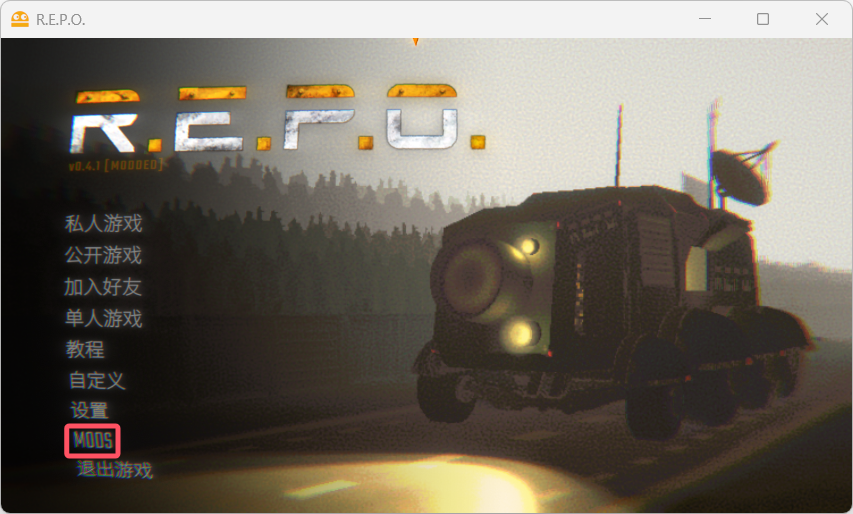
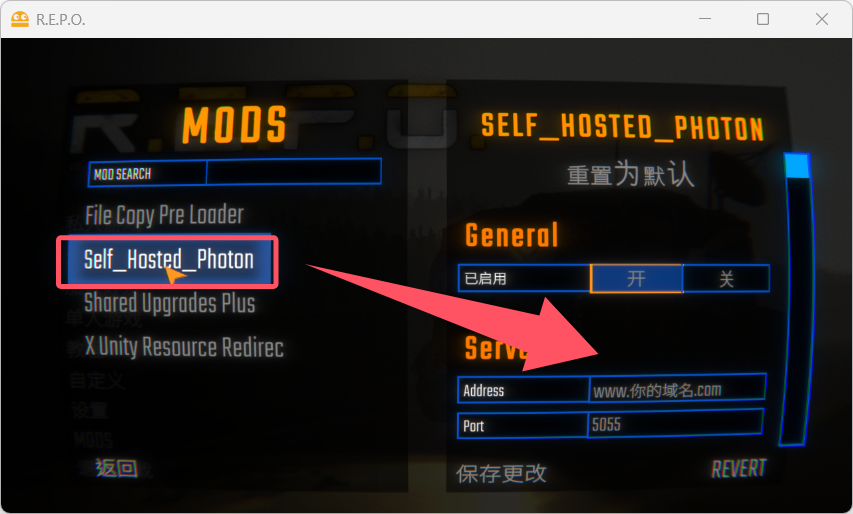
如果安装了游戏内Mod配置修改Mod:
1、启动游戏,点击MODS
2、点击Self_Hosted_Photon,即可在右侧修改连接配置,修改完点击保存更改即可。
八、测试连接
配置完成后,就可以启动 R.E.P.O.进行游玩测试服务器了。
发表回复